How to let a client edit their website without giving them your login
Don't give a client your password: give them their own login that only reaches their website and only the things
they need to change. On Wix, Squarespace and WordPress that means inviting them with a limited role; in Ginta it means
adding them as an admin user of that one website, so they sign in at their own address plus /admin (for example
theirdomain.com/admin) with their email and a password, without a Ginta account.
Below: why sharing your login goes wrong, how the common platforms do roles (checked on their own pages on 9 November 2026), and how it works in Ginta, including what the client can't do there. Ginta is our product.
Why not just share your login?
- You can't take it back. Changing your password to lock one client out locks out every tool and person that uses it.
- They see everything. Your other clients' websites, your billing, your plan, your settings.
- Nobody knows who did what. If prices change or a page disappears, everything was done "by you".
- Security. Your password now lives in someone else's notes, browser and inbox, and two-step sign-in codes go to your phone at the worst times.
How the common platforms do it
Wix: collaborators with roles
On Wix you open Roles & Permissions in the site's dashboard and invite people by email with a role. The roles include Admin (Co-Owner), Website Manager, Back Office Manager, and app roles such as Blog Writer or Store Manager (Roles & Permissions: An Overview). The invited person logs in to Wix to accept, and "If they don't yet have an account, they can create one." Seats are limited: "By default, Wix sites have 1 free collaborator seat" (Inviting People to Collaborate on Your Site). Both checked on 9 November 2026.
Squarespace: contributors with permissions
Squarespace calls them contributors: "anyone with a Squarespace account who can log in and edit your site content." Only owners and administrators can invite them, and the number depends on the plan: Basic allows "One contributor (for a total of two, including the owner)", Core, Plus and Advanced allow unlimited (Invite a contributor, checked on 9 November 2026).
WordPress: user roles
WordPress has roles built in. An Editor is "somebody who can publish and manage posts including the posts of other users"; an Administrator has "access to all the administration features within a single site" (Roles and Capabilities, checked on 9 November 2026). For a client who only updates news and pages, Editor is usually enough.
Where they are better than Ginta: a Wix Website Manager, a Squarespace contributor with editing rights or a WordPress Editor can change the pages themselves: text, pictures, layout. In Ginta, a client's /admin login changes content in Parts and reads messages, but not the page text or design (more below).
How it works in Ginta: yoursite.com/admin
Every Ginta website can have its own admin at its own address: name.ginta.page/admin, or theirdomain.com/admin once
a domain is connected. People you add sign in there with their email and a password. It's a login for that one
website only: not a Ginta account, and it never reaches your account, your other websites, your plan or your billing.
Add your client
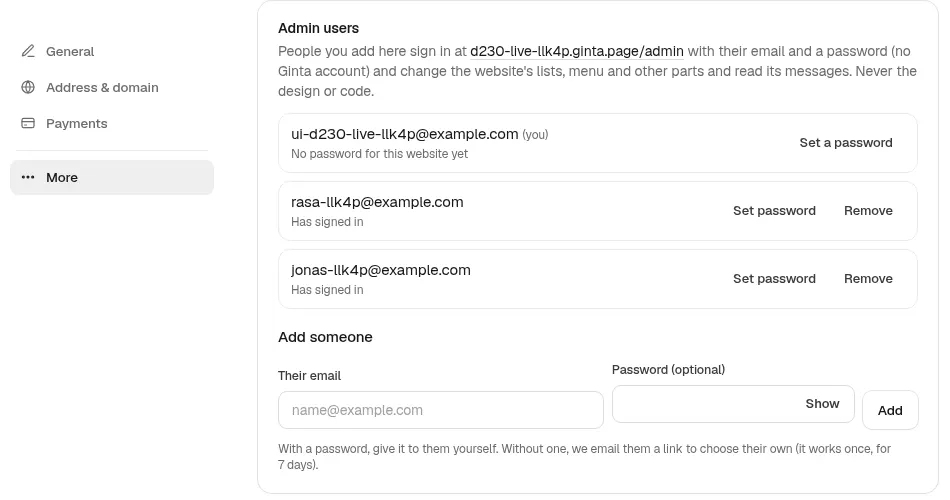
- Open the website in Ginta and go to Settings → More → Admin users.
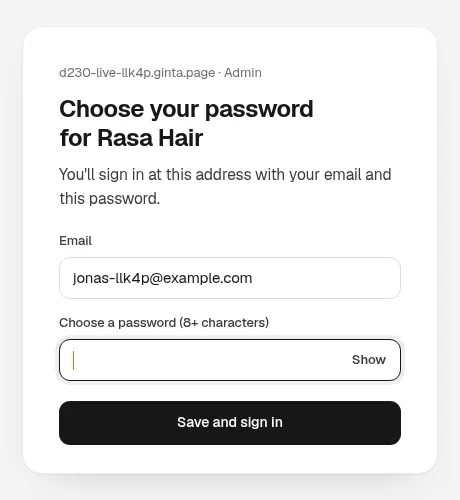
- Under Add someone, type the client's email. Add a password if you want to give it to them yourself, or leave it empty: Ginta emails them a link to choose their own (it works once, for 7 days).
- Press Add. They get an email saying they can now manage the website.
When Ginta sets up a Part for a new website (a menu, a shop, bookings), the editor's chat also shows a Set up
access card that does the same in one short form. If you build with your own Claude or ChatGPT through Ginta's MCP
server, the manage_admins tool adds people too (MCP tools).
What the client can do at /admin
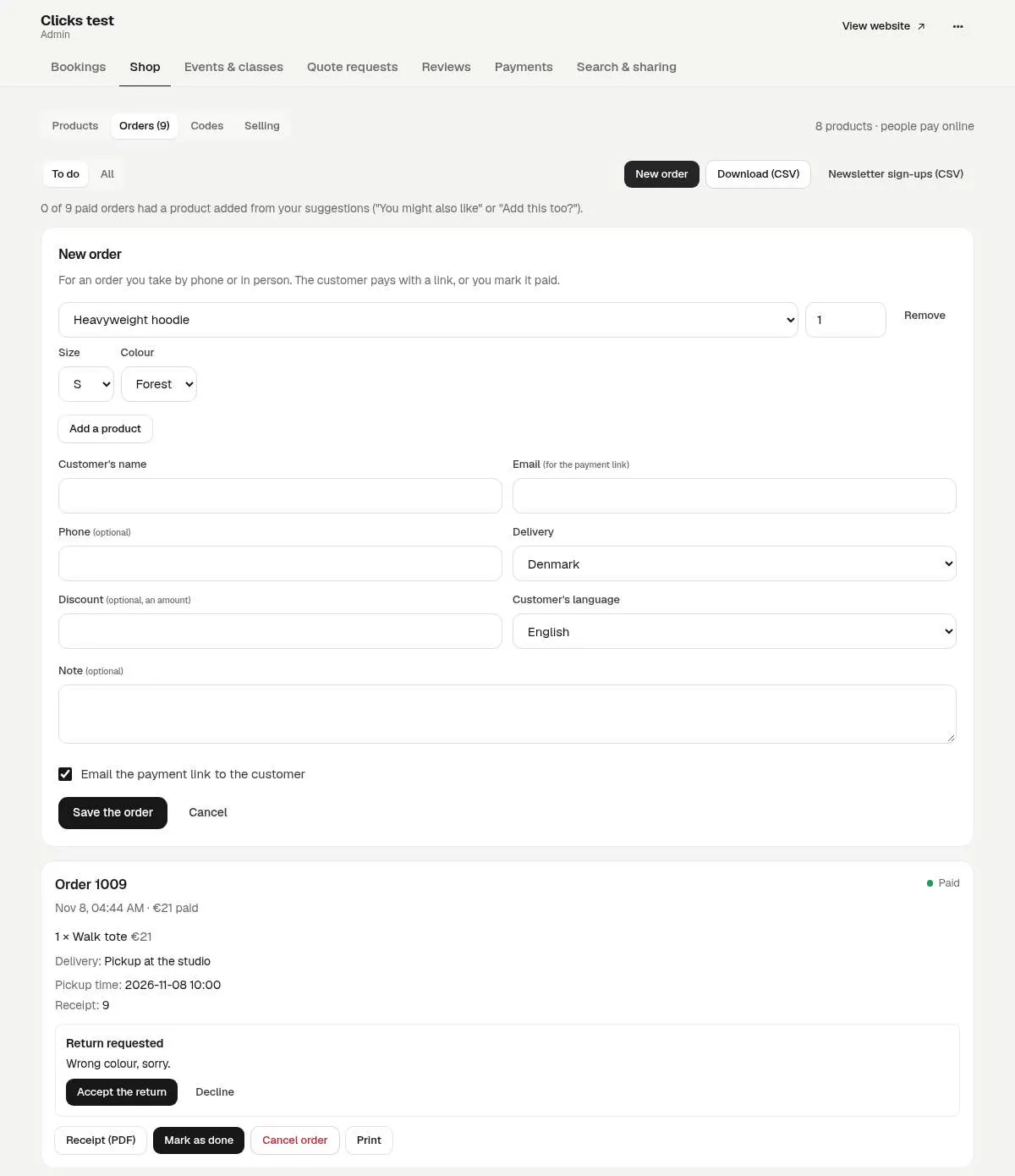
- Change the content of the website's Parts: menu dishes and prices, shop products, orders and discount codes, bookings and opening times, events and classes, quote requests, gallery, blog posts, announcements, and approve reviews. Changes show on the website right away.
- Read messages from the website's forms and Parts.
- Connect their own Stripe for the website's card payments, from the Payments tab (see payments into the client's own Stripe). You get an email when they do.
- Use it in their language: /admin speaks the website's language (9 languages).
Their emails lead to their /admin, not to your account
When a form message, an order or a booking comes in, Ginta emails the website's form email. If that address belongs to an admin user of the website, the email's button opens their website's /admin. Only the account owner's email gets a button into Ginta. So set the website's form email to the client's address (Settings → General), and the client never needs to know your Ginta account exists.
Safety you don't have to think about
- Forgot password? The client asks for a 6-digit code by email on the /admin page.
- After 5 wrong passwords in a row, that email's sign-in on that website waits 15 minutes.
- Remove in Admin users ends that person's sessions at once.
- The sign-in only works on that one website, even if the same person helps with two of your websites.
Where Ginta is weaker
- The client can't change the page text or design at /admin. Headlines, the About section, photos on the pages, colors and layout are changed in Ginta's editor (by chat with Ginta's AI) or with your own AI through MCP, by you. If the client needs to rewrite their pages themselves, give them the website (hand-over guide) or use a builder with page-editing roles.
- Admin users per website depend on the plan: one on Free, more on paid plans. Your own account email can always sign in and doesn't count. See pricing.
- /admin only exists when there's something to manage: a Part or a contact form. A website with only text pages has no /admin.
- Refunds stay with the owner and Stripe. A client admin can't press Refund in /admin; they refund from their own Stripe Dashboard (Ginta notices the refund), or you do it from Ginta.
Questions
Does my client need a Ginta account?
No. An admin user signs in at the website's own address plus /admin with their email and a password. It isn't a Ginta account and doesn't reach anything else.
Can the client see my other clients' websites?
No. The login works on one website only, and never shows your account, plan or billing.
Can the client change the text on the home page?
Not at /admin. They change Parts (menu, prices, products, bookings, events and so on) and read messages. Page text and design are changed in Ginta's editor or with your own AI.
How many people can manage one website?
One admin user on the Free plan, more on paid plans. The account owner can always sign in as well.
How do I remove a client's access?
In the website's Settings → More → Admin users, press Remove next to their email. Their sessions end at once.
Written with AI help for Ginta, which Povilas runs; he also teaches a website-building course. The screenshots are from the real Ginta on the date above, and prices come from our pricing page.