Taking payments on a client's website: straight into their own Stripe
When you build a website that takes payments for a client, the money should go straight into the client's own Stripe account, never through yours: the sales, refunds, chargebacks and taxes are the client's business, not yours. In Ginta, each website can have its own Stripe: you send the client a one-time link (it works for 7 days, once, and needs no Ginta account), they connect their Stripe, and from then on card payments on that website are paid to them, with no fee from Ginta.
Below: why it matters, the usual ways to do it on any platform, and the steps in Ginta, including where it's weaker. Facts about Stripe come from Stripe's own pages, checked on 9 November 2026. Ginta is our product.
Why the client's money shouldn't pass through you
- It's their income. If customers pay into your Stripe, you hold someone else's money and have to pay it on, and it shows up in your own accounts.
- Refunds and chargebacks land on the account holder. A customer's dispute is handled in the Stripe account that took the payment, and Stripe charges its dispute fee there (Stripe pricing). You don't want that on your account for a client's sale.
- Taxes and receipts. A Stripe account belongs to one business: "You can only associate each account with the tax ID and legal entity of one business."
- Stripe expects it. Stripe's own rule is: "You must use separate Stripe accounts for projects, websites, or businesses that operate independently from one another." It also warns that a shared account can confuse buyers: they see the wrong business name on their card statement, which can lead to disputes (Multiple separate accounts, checked on 9 November 2026).
- The hand-over. When the client leaves you, their payments should keep working without you touching anything.
The usual ways to do it
- The client connects their own Stripe on the platform. Most website builders have a "connect Stripe" button in the site's payment settings. The catch is that the client usually needs to be logged in as the site's owner or an admin to press it, or sit next to you while you do it. And check what happens on a hand-over: Wix, for example, says "It is not possible to transfer Wix Payments accounts between Wix accounts" (Transferring a Premium Site to Another Wix Account, checked on 9 November 2026).
- Stripe Payment Links in the client's own account. The client (or you, with access to their Stripe) makes a payment link in their Stripe Dashboard. Stripe describes them as a way to "Accept payments online without writing code": you share the link or add a buy button to the website (Stripe Docs: Payment Links, checked on 9 November 2026). Good for a few fixed products or a deposit; there's no cart, stock, delivery options or booking calendar tied to the website.
- Taking payments in your account and paying the client. Avoid it, for the reasons above.
How it works in Ginta: Stripe per website
Ginta's Shop, Bookings (with deposits) and Events & classes take card payments through Stripe Checkout on the website owner's own Stripe account. By default, every website in your Ginta account uses the Stripe you connected in Account → Payments. A client's website can have its own Stripe instead, and only that website uses it.
Send the client a link
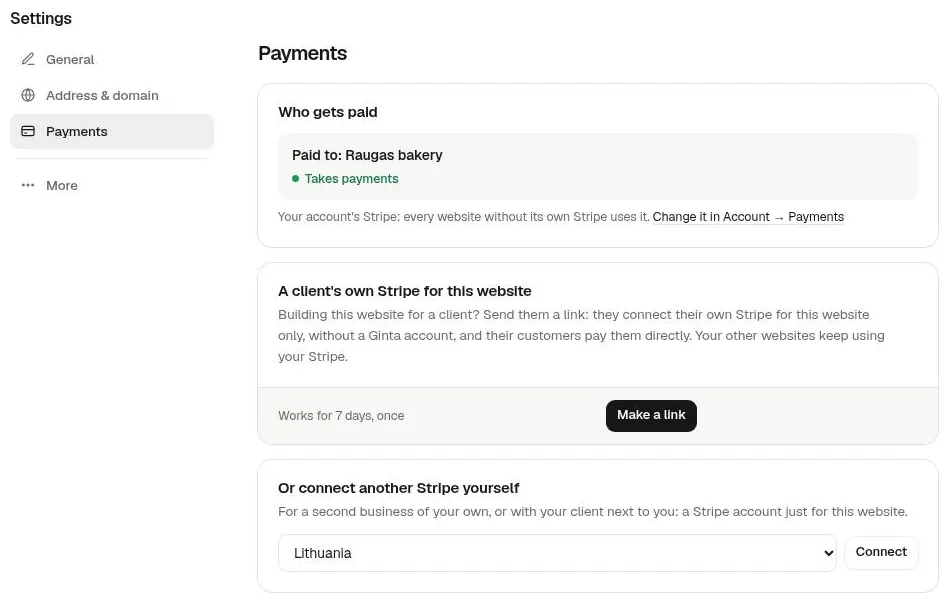
- Open the client's website in Ginta and go to Settings → Payments.
- Press Building this website for a client, or for a second business? to open the client options.
- Under A client's own Stripe for this website, press Make a link, copy it and send it to the client. It works for 7 days, once. A new link replaces an unused one, and you can cancel it.
What the client does
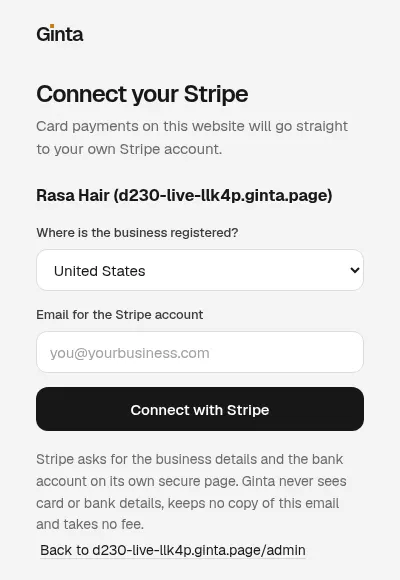
- The client opens the link. The page shows the website's name and address, asks where the business is registered and which email to use for the Stripe account, and sends them to Stripe's own page for the business details and the bank account. Ginta never sees card or bank details, keeps no copy of that email, and takes no fee.
- When Stripe has what it needs, the website's card payments go to the client's Stripe. In Settings → Payments you see Paid to: and the name of the client's Stripe account.
Until the client finishes Stripe's steps, card payments on that website are paused. Ginta never falls back to your Stripe for a website that has its own, so the client's customers can't pay you by mistake. Your other websites keep using your Stripe.
Or the client does it from their /admin
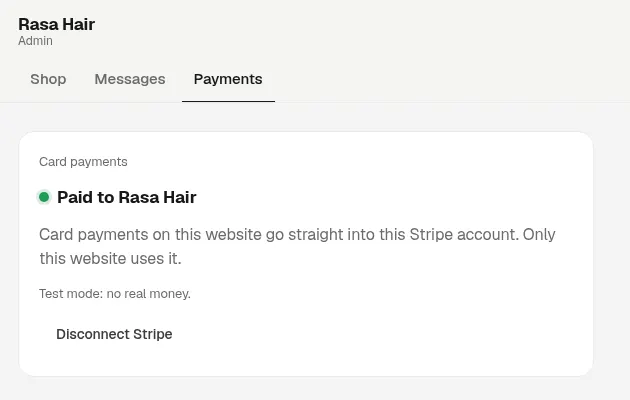
If the client is an admin user of the website (they sign in at theirdomain.com/admin, see let a client edit their
website without your login), they can press Connect Stripe in the Payments tab
there. That tab shows where the website's card payments go, and lets them disconnect their Stripe from this website.
You hear about every change
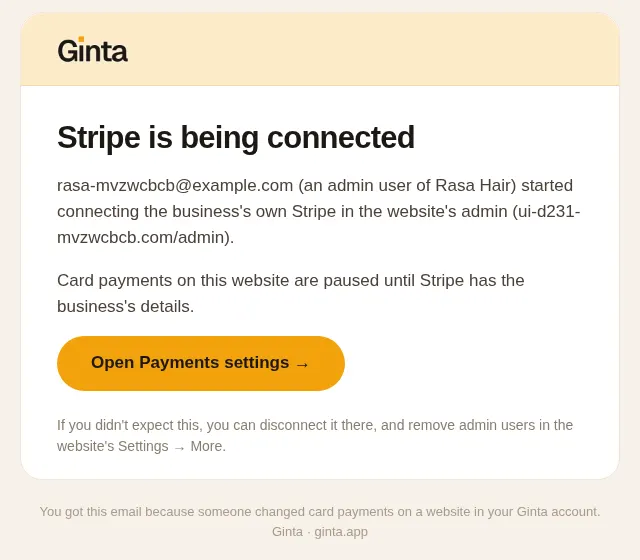
Because this moves where the money goes, Ginta emails you, the account owner, when a client admin starts connecting Stripe, when the connection becomes active, and when they disconnect it. The website's chat in Ginta shows the same as a grey line. If you didn't expect it, you can disconnect it in Settings → Payments and remove the admin user.
What it costs
Ginta's fee on these payments is 0%, on every plan, Free included. Stripe charges its own fees on the client's account; they depend on the country and the card, so check Stripe's pricing page for the client's country. On the Free plan, the Parts have per-website limits (25 products, 30 bookings a month and 5 upcoming events); paid plans don't. More on the shop side: an online shop with Stripe.
Refunds
You can refund an order, booking or event place from Ginta (the Refund button in the website's Parts tab), and the money comes back out of the client's Stripe. The client can also refund from their own Stripe Dashboard: Ginta notices the refund and puts stock or places back.
Where Ginta is weaker
- The client has to finish Stripe's onboarding themselves. Stripe asks for their business details and bank account on its own page; nobody can do that part for them. Until they finish, card payments on that website are paused.
- Stripe only. Ginta's Parts take cards through Stripe. There's no PayPal checkout; a PayPal or other payment link can only go on a simple button.
- Countries are Stripe's. The client's business has to be in a country where Stripe accounts are available.
- A client admin can't press Refund in /admin. They refund in their Stripe Dashboard, or you do it in Ginta.
Questions
Does my client need a Ginta account to connect their Stripe?
No. The link opens a page on ginta.app where they pick their country and email and continue to Stripe. No Ginta account or password.
How long does the client link work?
7 days, and only once. You can make a new one (it replaces the unused one) or cancel it in Settings → Payments.
Will my other websites use the client's Stripe?
No. Only that website uses it. Every website without its own Stripe keeps using your account's Stripe.
Does Ginta take a cut of the client's sales?
No. Ginta's fee is 0% on every plan. Stripe's own fees apply on the client's Stripe account.
Can the client take payments by PayPal?
Not in Ginta's shop or booking checkout: those use Stripe. A PayPal payment link can go on a button on the website.
Written with AI help for Ginta, which Povilas runs; he also teaches a website-building course. The screenshots are from the real Ginta on the date above, and prices come from our pricing page.