How to add a shopping cart to a hand-coded HTML website
A plain HTML website can't keep a cart or take payments by itself: it needs a service that remembers the cart, checks prices and stock, and sends buyers to a secure payment page. The simplest options are a Stripe Payment Link per product (no cart), or a cart script such as Snipcart, Ecwid or Shopify's Buy Button that you paste into your pages; if your site is hosted on Ginta, its Shop can run the cart and checkout while you write the grid and cart in your own HTML, CSS and JavaScript.
Facts about the other services come from their own pages, checked on 9 November 2026 (links in each section). Card fees differ by country; the examples below are for a business in the euro area unless they say otherwise. We make Ginta.
What a "cart" has to do
Showing a list of products is the easy part. A working cart also has to:
- keep what the visitor picked while they move between pages,
- add up the total with prices it can trust (anyone can change a price in their own browser),
- know what's in stock, delivery prices, and discount codes,
- send the buyer to a secure card payment page, and tell you about the order.
A static site has nowhere to do the last three, so each option below brings that part from somewhere else.
1. Stripe Payment Links: one link per product, no cart
Stripe calls it a way to "accept payments online without writing code": you create a link in the Stripe Dashboard and put it behind a Buy button on your page. Customers can change quantities on Stripe's page, and Stripe can collect addresses, charge shipping and take promotion codes (Payment Links). One link holds a fixed set of products (up to 20 line items when made through the API), so visitors can't fill a cart with different products as they browse (Create a payment link).
Cost: no monthly fee; Stripe's card fee, for example 1.5% + €0.25 for a standard EEA card (Stripe pricing, Ireland). Best for a few products bought one at a time.
2. Snipcart: a cart from HTML attributes
Snipcart is a script you paste after <body> with your public API key; a button becomes "add to cart" with the class
snipcart-add-item and data-item-id, data-item-name and data-item-price. Before confirming an order, Snipcart's
server fetches your product page and looks for the same button, so prices can't be changed in the browser
(Snipcart docs: products).
Cost: 2% of each sale, or "a $20 USD monthly fee" instead when monthly sales are under $1,000, plus your payment provider's fees (Snipcart pricing). Best for developers who want the cart defined in their own HTML.
3. Ecwid: a whole store widget
Ecwid (by Lightspeed) adds a store to an existing website "built on WordPress, Wix, Squarespace, or any other platform" on every plan. Starter is $5/€5 a month for up to 10 products; Ecwid says it doesn't "charge any setup or transaction fees on any of our plans", and its prices exclude tax (Ecwid pricing). Card fees come from the payment provider you pick. Best for a store that looks like Ecwid's store, with Ecwid's dashboard.
4. Shopify's Buy Button
Shopify's Buy Button sales channel "is included in all Shopify subscription plans" and shows product pictures, descriptions and prices on your own website (Buy Button). You need a Shopify store behind it: Basic is €19 a month paid yearly, as shown to a visitor in the EU, with Shopify Payments online card rates from 1.8% + €0.25, and 2% extra when you use another payment provider (Shopify pricing). Best for businesses that already run on Shopify.
5. Ginta's Shop, in your own design
If your website is hosted on Ginta, its Shop is a ready-made part: you manage products, prices, photos, sizes and
stock in Ginta, and Ginta's server keeps the cart honest: it prices every order, delivery option and discount code
itself, checks stock, and sends buyers to Stripe's payment page on your own Stripe account. Normally Ginta draws
the product grid in its own look. Add data-headless and it draws nothing: you write the grid and the cart, and a
small helper script (window.GintaShop) does the rest.
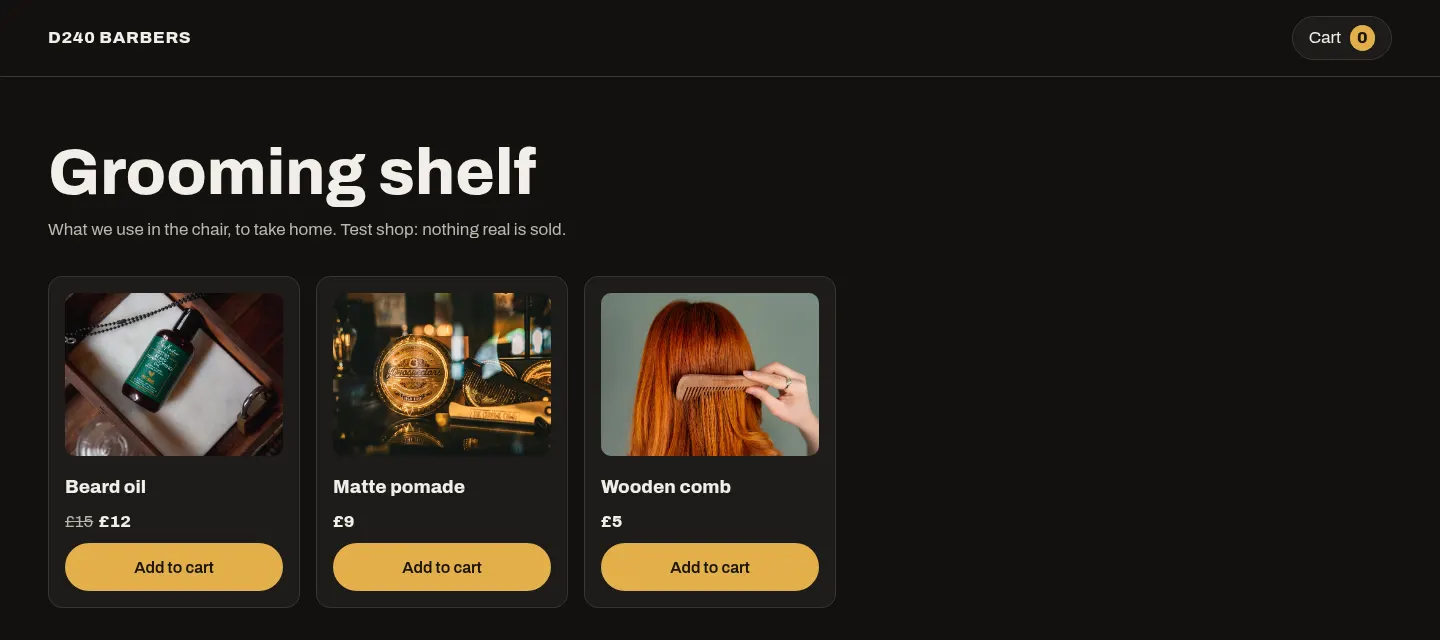
Step by step
- Put your site on Ginta. From Claude Code, Codex or Cursor with Ginta connected, ask it to "deploy this folder to Ginta": it uploads everything as one .zip (Claude Code guide). From Claude or ChatGPT, ask it to publish your pages with Ginta. Without an assistant, the REST API takes the files, and the editor's Code view lets you paste and edit pages by hand.
- Add your products in the website's Parts tab → Shop: name, price, photos, sizes or colors, stock, delivery options. Coming from Shopify, Etsy or WooCommerce? Import their CSV.
- Connect Stripe under Account → Payments so the Shop can take card payments. No Stripe? Give the Shop your WhatsApp number and the cart sends the order to you on WhatsApp instead.
- Add the placeholder where the shop goes:
Ginta loads the helper script there by itself; you don't add a<div data-ginta-module="catalog" data-headless></div><script src>for it. - Draw the grid and cart with your own markup. A short, working example (the full one is in the Shop's guide,
get_guidetopicmodules):
<div data-ginta-module="catalog" data-headless></div>
<ul id="grid"></ul>
<aside id="cart" hidden>
  <ul class="lines"></ul>
  <p class="sum"></p>
  <input name="website" hidden tabindex="-1" autocomplete="off">
  <button type="button" class="pay">Checkout</button>
  <p class="msg" role="status"></p>
</aside>
<script>
document.addEventListener("DOMContentLoaded", async () => {
  const S = GintaShop, d = await S.load(), cart = document.getElementById("cart");
  document.getElementById("grid").innerHTML = d.products.map((p) => `<li>
      <a href="${p.url}"><h3>${S.esc(p.name)}</h3></a>
      <p>${p.compare_at_cents ? `<s>${S.money(p.compare_at_cents)}</s> ` : ""}${S.money(p.price_cents)}</p>
      ${p.can_buy ? (p.needs_choice ? `<a href="${p.url}">Choose</a>`
        : `<button type="button" data-add="${p.id}">Add to cart</button>`) : `<span>${S.esc(d.words.soldOut)}</span>`}
    </li>`).join("");
  document.getElementById("grid").onclick = async (e) => {
    const b = e.target.closest("[data-add]");
    if (b) try { await S.cart.add(b.dataset.add); } catch (err) { cart.hidden = false; cart.querySelector(".msg").textContent = err.message; }
  };
  const paint = () => {
    const t = S.cart.totals();
    cart.hidden = !t.count;
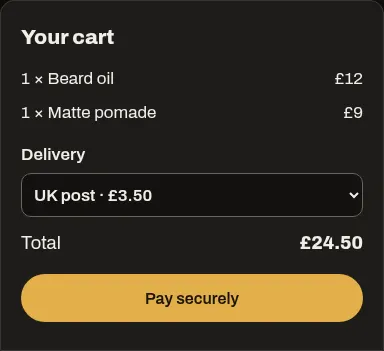
    cart.querySelector(".lines").innerHTML = S.cart.lines().map((l) => `<li>${l.qty} × ${S.esc(l.name)}</li>`).join("");
    cart.querySelector(".sum").textContent = S.money(t.total);
  };
  window.addEventListener("ginta-cart", paint); paint();
  cart.querySelector(".pay").onclick = async () => {
    try { await (d.pay ? S.checkout : S.whatsapp)({ website: cart.querySelector("[name=website]").value }); }
    catch (err) { cart.querySelector(".msg").textContent = err.message; }
  };
});
</script>
What the pieces do:
GintaShop.load()returns the shop as visitors may see it: products withname,price_cents,photos,url,can_buy, sizes (options,variants), the delivery options and Ginta's own words ("Sold out") in the page's language. It readsGET /_m/catalog/dataon your site's own address.GintaShop.cart.add(id),.cart.lines(),.cart.totals(),.cart.delivery(id): the cart, kept in the visitor's browser. Every change fires aginta-cartevent, so you repaint from it.GintaShop.code("WELCOME10")checks a discount code;GintaShop.checkout({...})sends the buyer to Stripe's page, which asks for their name and email (and their address when the order is delivered);GintaShop.whatsapp({...})sends the order on WhatsApp.- Errors come back with a message ready to show visitors, in the page's language (
err.message), and a code such assold_outorchoose. - The hidden
websitefield is a trap for spam bots: keep it and send its value.
Each product's own page (p.url) keeps Ginta's layout with your header and footer, unless you also write a
_product.html template. The cart is shared, so what a visitor adds there is in your cart too. Details:
Ready-made parts.
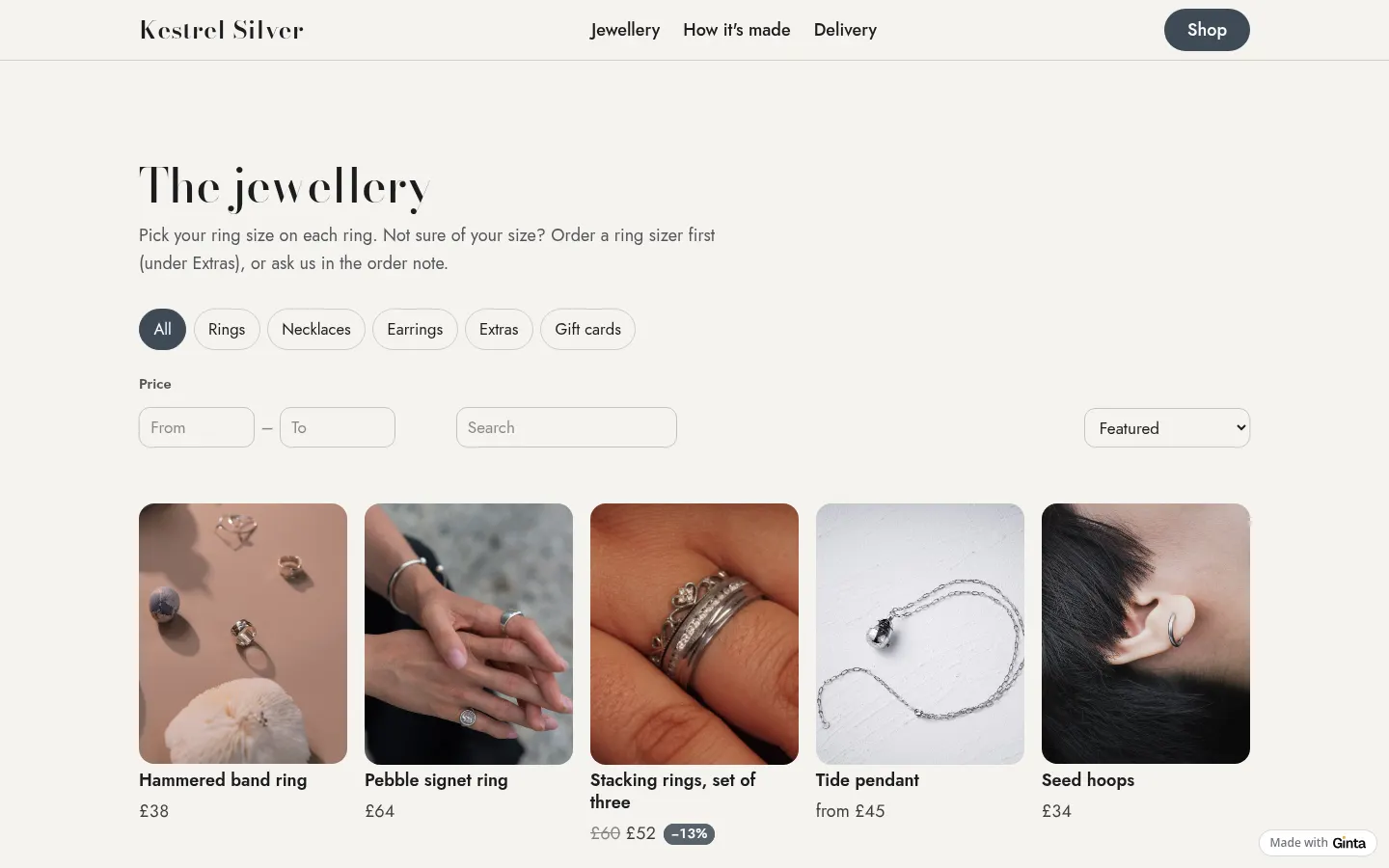
Without data-headless, the same placeholder shows Ginta's own shop: filters, search, sizes, product pages and a cart
drawer, styled with your site's fonts and colors.
Cost: Ginta takes 0% of your sales on every plan; Stripe charges its own card fee to your Stripe account (as in option 1). The Free plan's Shop holds 25 products per website at a Ginta address; your own domain is on paid plans (from €5 a month). All plans: pricing.
Which one should you pick?
- Two or three products, bought one at a time: Stripe Payment Links. Nothing to host or install.
- Your site stays where it is, and you want the cart in your own HTML: Snipcart.
- You want a ready-made store dropped into any site: Ecwid, or Shopify's Buy Button if you're on Shopify.
- Your site can live on Ginta, and you want your own design with nothing taken per sale: Ginta's Shop with
data-headless.
Where Ginta is weaker
- It only works on websites hosted on Ginta. Snipcart, Ecwid, Shopify's Buy Button and Payment Links work on any host; Ginta's Shop doesn't run on a site served from Netlify, GitHub Pages or your own server.
- No subscriptions or repeat deliveries yet.
- Card payments need Stripe, so your business has to be in a country Stripe supports (or you take orders on WhatsApp and arrange payment there).
- Product pages keep Ginta's layout unless you write a
_product.htmltemplate too.
Questions
Can I add a shopping cart with just HTML?
You can draw it with HTML, but the cart needs a service behind it to keep prices honest and take payment. Snipcart works from HTML attributes; Ginta's Shop gives you a small JavaScript helper; Stripe Payment Links skip the cart and link straight to a payment page.
Do I need a backend for a shopping cart?
Not your own. Each option here runs the server part for you: Stripe, Snipcart, Ecwid, Shopify or Ginta checks the prices and takes the payment.
Which option has no fee per sale?
Ecwid says it charges no transaction fees on any plan, and Ginta takes 0%. You still pay the card fee of your payment provider. Snipcart takes 2% (or a monthly fee for small shops), and Shopify adds 2% on Basic if you don't use Shopify Payments.
Can I keep my own design with Ginta's Shop?
Yes. With data-headless Ginta draws nothing: your HTML and CSS show the products and the cart, and Ginta handles
prices, stock, delivery, codes and Stripe's payment page.
Written with AI help for Ginta, which Povilas runs; he also teaches a website-building course. The screenshots are from the real Ginta on the date above, and prices come from our pricing page.