How to password-protect a website for free
To password-protect a whole website for free, you need either a builder that includes it on its free plan, such as
Ginta's Private setting, or your own server, where a .htaccess file with basic authentication does it. Most
well-known builders put a site-wide password on paid plans only: Squarespace, Webflow and Carrd say so on their own
help pages. Below is what each one offers, then the steps for the free ways.
We make Ginta. Every other fact comes from the company's own pages, linked, checked on 9 November 2026.
Which builders can put one password on a whole website
| Whole-site password | On which plan | Good to know | |
|---|---|---|---|
| Squarespace | Yes, one password for everyone | Paid sites and trial sites (there's no free plan) | Visitors type it again after 4 hours; checkout doesn't work while it's on |
| Webflow | Yes, plus page and folder passwords | Paid Site plans (Basic, CMS, Business, Ecommerce), or a paid Growth, Agency or Enterprise Workspace | Not on free, unhosted sites |
| Carrd | Yes, a username and password | Pro Plus ($49 a year) or higher | Not on Pro Lite or Pro Standard |
| Wix | Yes in the Wix Editor ("Password Holders") | Not named on the help page | The page says the feature isn't available to all users; in the Studio Editor a single password for the whole site isn't possible |
| WordPress.com | No shared password; Private shows the site only to you and users you approve | Not named on the help page | Coming Soon hides a site while you build it |
| Ginta (ours) | Yes, one password for everyone | Every plan, Free too | One shared password, no visitor accounts |
Sources: Squarespace site-wide passwords; Webflow password protection; Carrd adding password protection and plans; Wix password protecting your site and the Studio Editor request; WordPress.com privacy settings.
Many builders can also lock single pages, or have member areas where each visitor has their own login. That's a different thing: this post is about one password in front of everything.
The free way on your own server: .htaccess
If your website runs on an Apache web server, basic authentication is built in. Apache's own authentication guide shows the steps:
Make a password file with the
htpasswdtool, outside the folder your website is served from:htpasswd -c /path/outside/the/site/passwords guestPut a
.htaccessfile in the website's folder:AuthType Basic AuthName "Private website" AuthUserFile "/path/outside/the/site/passwords" Require valid-userYour host has to allow it (
AllowOverride AuthConfig), and the website must use https: Apache's guide warns that basic authentication sends the password unencrypted otherwise.
Visitors get the browser's own grey login box. It's free and solid, but it needs a server you control and a little comfort with files and commands.
The free way without a server: Ginta's Private setting
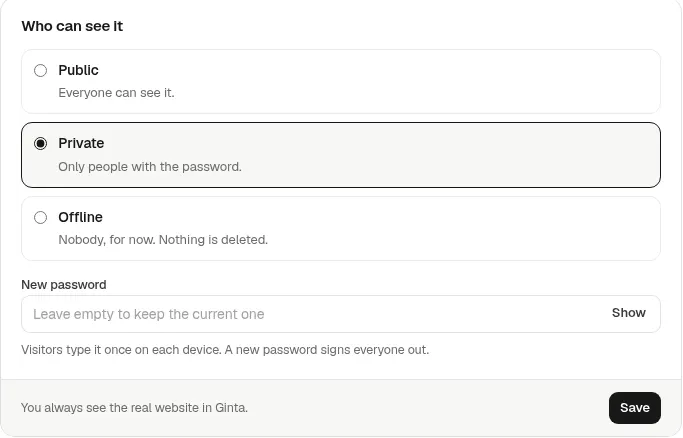
Every Ginta website, on every plan, has Who can see it: Public, Private or Offline.
- Open your website → Settings → General → Who can see it.
- Choose Private and type a password.
- Press Save.
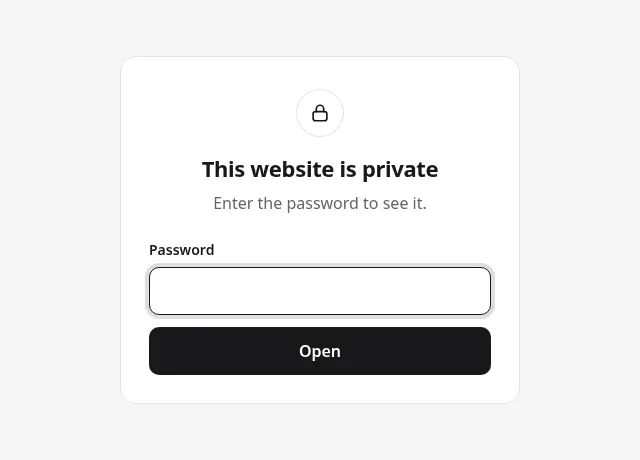
What visitors see: a clean password page in your website's language, on your Ginta address and on your own domain. Nothing of the website shows before the right password: no title, no share preview, no photos.
How it behaves:
- Once per device. After the right password, visitors move around the website freely, forms and shop included.
- Sign everyone out by setting a new password. Everyone types the new one next time.
- Not indexed. Search engines get the password page, marked "noindex", and private websites are left out of the sitemap.
- Wrong guesses are slowed down. Too many wrong tries, and the visitor waits a few minutes.
- You always see the real website in Ginta's editor, and Open site lets you in without the password.
It's useful for a website still being built, a wedding or family page, a team's internal page, or a client preview.
If you build with Claude, Ginta's manage_site tool can switch it too.
Where Ginta is weaker
- One shared password. There are no separate logins for visitors and no list of who came in. Anyone with the password can pass it on; change it to lock them out again.
- Not for secret documents. It keeps a website away from the public and from search engines. For medical, legal or financial records, use a tool made for them.
- Stripe needs to see a public website. If you plan to take card payments, Stripe says your website must open without a password when it checks your account (Stripe's website requirements). More in Stripe is asking for a business website.
Questions
Can I password-protect a website for free?
Yes. On Ginta, Private is on every plan, Free too. On your own Apache server, a .htaccess file with basic
authentication costs nothing. Squarespace, Webflow and Carrd include a site-wide password only on paid plans.
Does a password-protected website show up on Google?
Usually not. Search engines can't get past the password, and Squarespace, Wix and Ginta all say protected sites aren't crawled or indexed. Pages that were indexed before can take a while to drop out.
Can I give different people different passwords?
Not with a site-wide password: everyone uses the same one. For separate logins you need a member area with its own accounts, or WordPress.com's Private setting, where you approve each viewer.
How do I stop someone who has the old password?
Set a new password. On Ginta, a new password signs everyone out at once.
Written with AI help for Ginta, which Povilas runs; he also teaches a website-building course. The screenshots are from the real Ginta on the date above, and prices come from our pricing page.