How to take orders on WhatsApp from your website
The simplest way to take orders on WhatsApp from your website is a click-to-chat link (wa.me/ plus your number)
with a message already typed in; the WhatsApp Business app adds a catalog and a cart inside WhatsApp. The catch with
both is that the orders live only in your chats, so on a busy day you scroll back to find who ordered what. A website
cart that writes the order into WhatsApp and also keeps a copy of it solves that. This post shows all three, with the
steps for each.
We make Ginta, whose Shop does the third one. Facts about WhatsApp come from WhatsApp's own pages, checked on 9 November 2026.
Option 1: a click-to-chat link
WhatsApp's help center explains click to chat: a link that opens a chat with your number, on a phone or in WhatsApp Web, with a message already in the text box if you want one.
- Write your number in international format, without the
+, leading zeros, brackets or dashes. A US number(555) 123-4567becomes15551234567(an example number). - Your link is
https://wa.me/15551234567. - To put a message in the box, add
?text=and the message, encoded for a web address (a space becomes%20). - Put the link on a button on your website.
<a href="https://wa.me/15551234567?text=Hi%2C%20I%27d%20like%20to%20order%3A">Order on WhatsApp</a>
This works well for a short menu (a food truck, say) or a few products. The customer still types the order themselves, so you get "2 of the brown ones" instead of a product name, and nobody adds up the total.
Option 2: the WhatsApp Business catalog and cart
The WhatsApp Business app has a catalog: your products with photos, grouped into collections, inside WhatsApp. Customers can pick items from it and send them to you as one message, which WhatsApp calls the cart (WhatsApp Business features). The order isn't paid there: you confirm it and agree on payment in the chat (About Cart).
It's a good fit when your customers already talk to you on WhatsApp. The limit is that the catalog lives inside WhatsApp: people who find you on Google land on your website, not in the catalog, so you keep two product lists.
The real problem: orders get lost in chats
A chat is not an order list. Every order sits between photos, voice notes and "are you open today?", with no status, no total and nothing that says "done". It gets harder when two people answer the same phone, or when you want to see what sold last month.
Whatever you use, keep one list of orders: a spreadsheet, a notebook, or a shop that saves each order before the chat starts.
Option 3: a website cart that sends the order to WhatsApp
This is how Ginta's Shop does it. The customer fills a normal cart on your website, and one button opens WhatsApp with the whole order written out. At the same moment, Ginta saves the order.
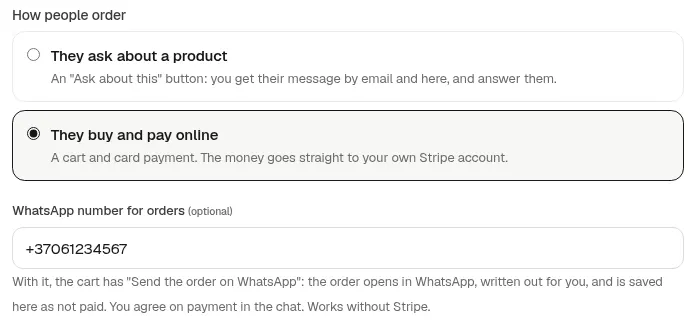
- Open your website's Parts tab → Shop → Settings.
- Type your number with the country code in WhatsApp number for orders and press Save settings.
- The cart now has Send the order on WhatsApp. Product pages show an "Order on WhatsApp" label.
What the customer does:
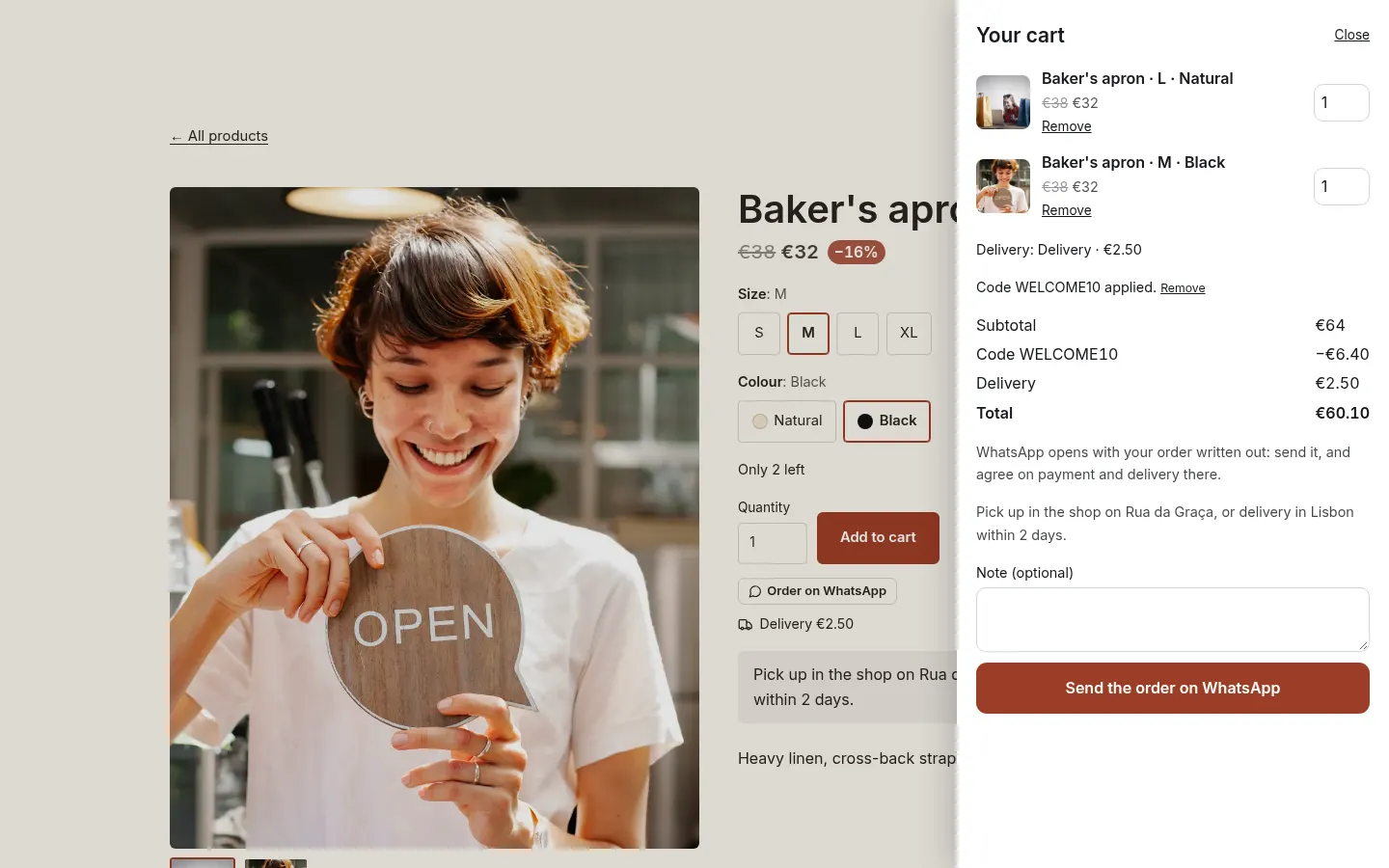
- Adds products (with size and color if you sell options), picks delivery or pickup, adds a discount code or a note.
- Presses Send the order on WhatsApp.
- WhatsApp opens with the order written out: the items, the code, the delivery, the total and the note, in the language of your website. The customer presses send.
What you get:
- The order in Ginta's Messages and in the Shop's Orders, marked "Sent on WhatsApp, not paid", with the prices worked out by the server, not typed by the customer.
- The customer's message in WhatsApp. You agree on payment and delivery there, then mark the order done.
- If you also connect Stripe, the cart shows Pay for card payments and Send the order on WhatsApp under it, and the customer picks.
It works without Stripe and on every plan, Free too (up to 25 products per website on Free). If you build
with your own AI through Ginta's MCP connection, its manage_module tool sets the same number. Want the orders in a spreadsheet as
well? See how to send website entries to Google Sheets.
Where Ginta is weaker
- No payment in WhatsApp mode. You agree on payment in the chat; Ginta doesn't take it.
- The customer has to press send. Ginta saves the order when they press the button, but it can't see whether the message really reached you. Treat an order without a chat as a customer who changed their mind, or message them.
- Stock and codes aren't counted for WhatsApp orders, only for orders paid online, because nothing is paid yet. Keep an eye on things you have only a few of.
- It isn't the WhatsApp Business Platform: no automatic replies or order messages inside WhatsApp. It opens a normal chat with your number.
Questions
Can customers order on WhatsApp without me having WhatsApp Business?
Yes. A click-to-chat link opens a chat with your number, and Ginta's button does the same. WhatsApp Business adds the catalog, the cart inside WhatsApp and a business profile.
How do I make a WhatsApp link with a message already written?
Use https://wa.me/<your number>?text=<your message>, with the number in international format without + or zeros
in front, and the message encoded for a web address. WhatsApp's click to chat
page has the details.
Do I need Stripe to take WhatsApp orders on Ginta?
No. The cart and the WhatsApp button work without Stripe. Connect Stripe only if you also want card payments at checkout.
Is the order saved if the customer never sends the WhatsApp message?
Yes. Ginta saves it when the customer presses Send the order on WhatsApp, before WhatsApp opens. That's why some saved orders may never reach your chat.
Written with AI help for Ginta, which Povilas runs; he also teaches a website-building course. The screenshots are from the real Ginta on the date above, and prices come from our pricing page.