Can you make a website on your phone? Yes: here's how, start to finish
Yes. With an AI website builder you can describe your business on your phone, get a live website in a minute or two, add photos from your camera roll and change it by typing, all in the phone's browser, with no app to install. A computer is still easier for long jobs, like importing a product list or editing code.
This post walks through every step on a phone screen. The pictures are Ginta's editor at 390 pixels wide (an ordinary phone), taken on a test copy of Ginta that runs the same code as ginta.app, with a demo website we made for this post: Rosa's Alterations, a tailoring service that doesn't exist. We make Ginta.
What you need
- A phone with a browser. Safari, Chrome or any other; nothing to download.
- An email address, or a Google or GitHub account to sign in with.
- A few sentences about your business: what you do, where, and how people reach you or book.
- Your own photos, if you have them. Photos of your real work beat stock photos every time.
Step 1: describe your business
Open ginta.app and type into the box, the way you'd explain your business to a new customer. Rosa's whole brief:
Rosa's Alterations, clothing alterations in Leeds: hems, zips, taking in and wedding dresses. Customers send photos of what needs doing and get a price.
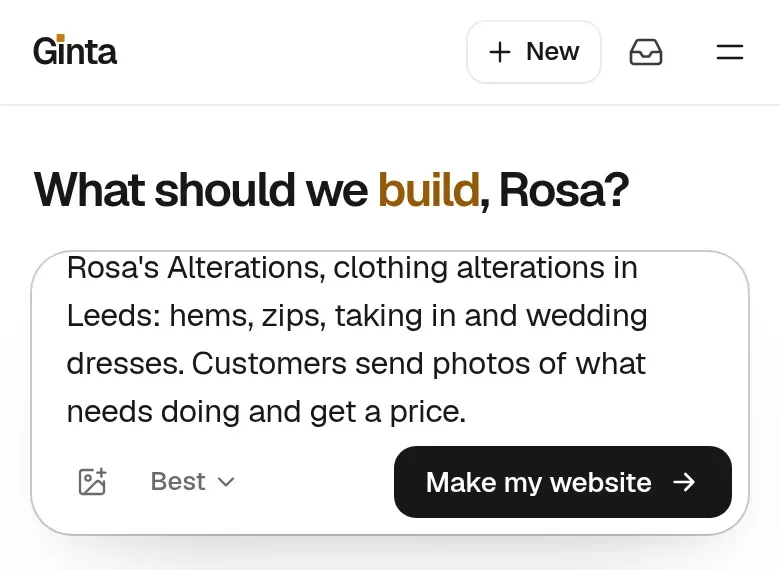
You create a free account and confirm your email before the build starts; Ginta keeps what you typed while you do. New accounts get 25 free credits at confirmation, plus 5 a day, and a first website with the Best AI usually takes about 22 credits.
Step 2: wait a minute or two
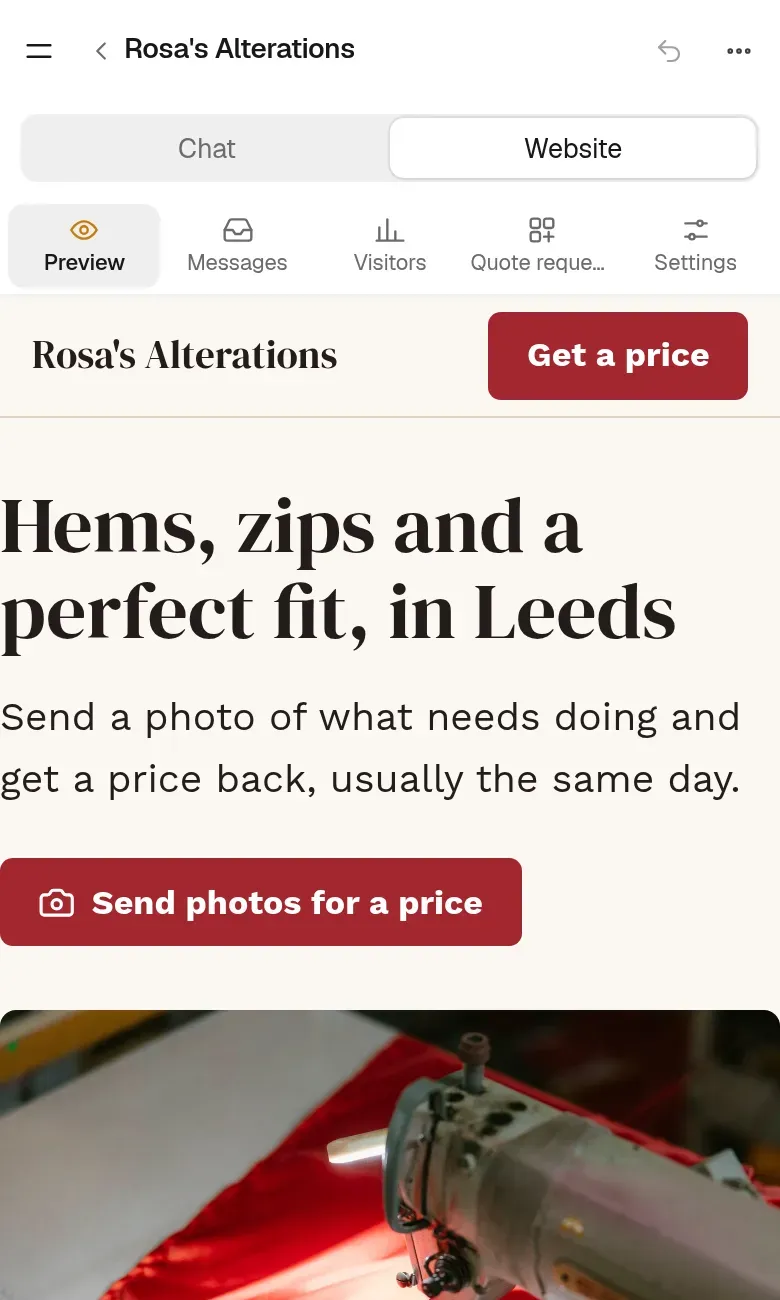
Ginta's AI writes the page, picks the fonts and colours, adds photos and a way to reach you, then checks the result the way a visitor would, at phone and computer sizes. On the Free plan a new website is one page, which is all most small businesses need to start.
When it's done, the editor shows two tabs on a phone: Chat, where you ask for changes, and Website, where you see the page as your customers will.
Step 3: change it
There are two ways, and both work with a thumb:
- Tap any text or photo in the preview and change it there. These hand edits are free: no AI, no credits.
- Ask in the chat, in your own words: "make the button say Book a fitting", "add opening hours: Tuesday to Saturday, 10 to 5". Changes like these use the Fast AI, about 0.3 credits each.
Every change is saved as a version, so Undo at the top takes back the last one.
Step 4: add your photos
Press Add photos under the chat box and pick photos from your camera roll. Say where they go, or leave Ginta's suggested text and press Send.
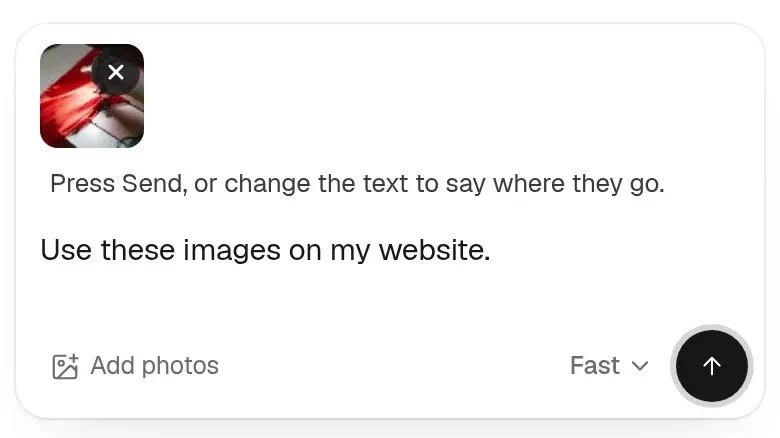
You can also swap one photo yourself: tap it in the preview and choose a new one.
Step 5: take requests, bookings or orders, and read messages
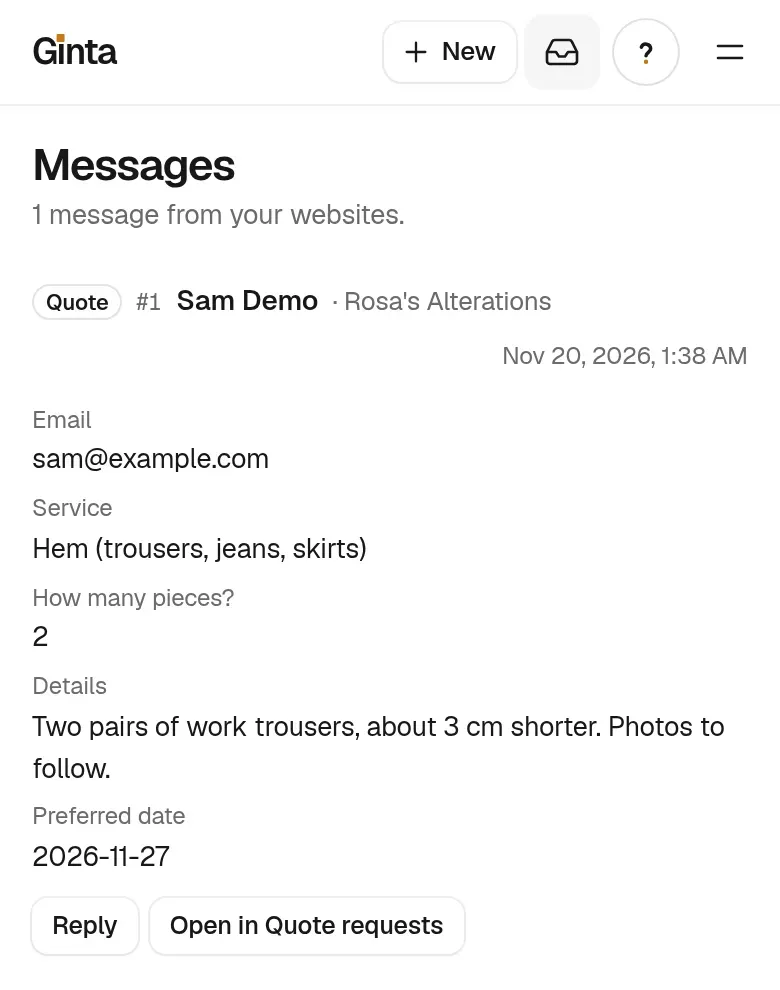
Rosa's website has a quote form where customers pick the job, answer a question or two and add up to three photos from their own phone (the same idea as our landscaping example). Ginta keeps the request, emails it to you, and shows it in the website's Quote requests tab, where you mark it quoted, won or lost.
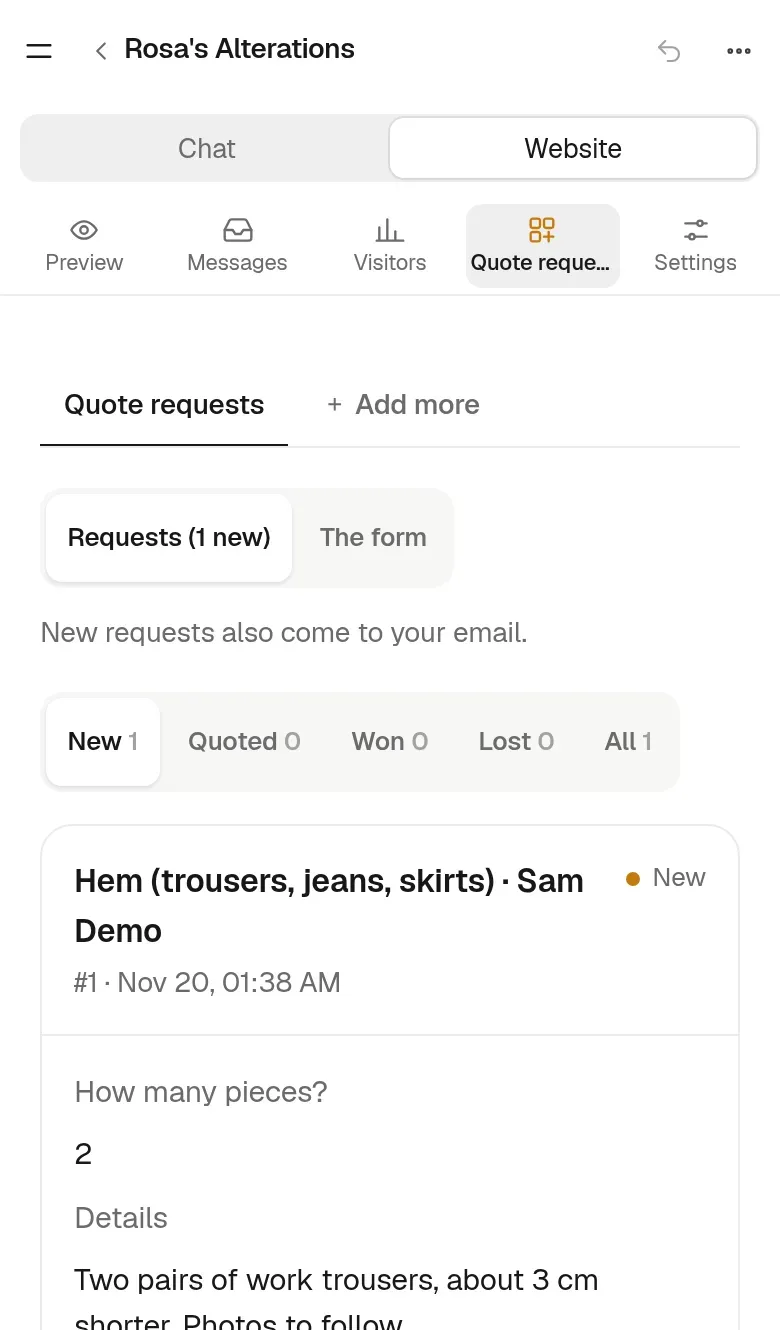
Everything visitors send (contact form messages, quote requests, bookings, shop orders) also lands in one list, Messages, with a Reply button. The same list works on a phone, and new messages are emailed to you too.
Other ready-made parts work the same way: bookings, a shop, a menu, events. You manage them in the website's own tab on your phone, without the AI.
Step 6: share it, or connect your own domain
Your website is live at its own address the moment it's built, like rosas-alterations.ginta.page. Share that link in
your Instagram bio, your Google Business Profile and your WhatsApp status.
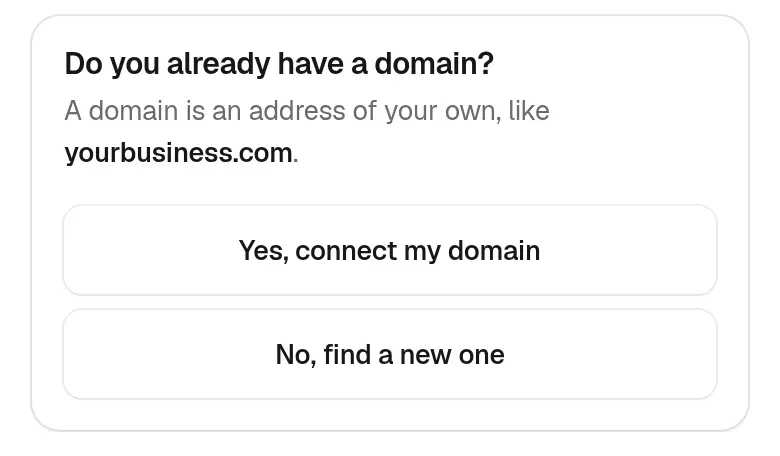
For an address of your own, like rosasalterations.co.uk, open Settings → Address & domain. You can connect a
domain you already have (the steps come one at a time, each with a Copy button, which is easy to follow on a phone
next to your domain company's app) or find a new one; a domain bought in Ginta is €29 a year. An own domain
needs a paid plan: Light, from €19 a month, or Hosting, from €5 a month if you build with
your own Claude or ChatGPT. More in connect your own domain.
Not ready for customers yet? In Settings → General you can make the website private with a password while you finish it (how).
What's easier on a computer
Being honest about it:
- Long product lists. Typing 40 products with sizes on a phone is slow. On a computer you can import a CSV from Shopify, Etsy or WooCommerce, or edit prices and stock in bulk.
- Code. Ginta's Code tab, for people who want to edit the HTML by hand, is much easier with a keyboard.
- The computer-size view of your website: you can check it on a phone, but a big screen shows it as it is.
- Long texts, like an "About" page or a blog post, are faster to type with a keyboard, or to paste from a document.
Everything else, from the first build to daily messages, works well on a phone.
Questions
Is there an app?
No, and you don't need one. Ginta works in your phone's browser; you can add it to your home screen like any web page.
Can I use my own photos from my phone?
Yes. Press Add photos in the chat and pick them from your camera roll, or tap a photo in the preview to replace it. Customers can send you photos too, through a quote form.
Can I edit my website later on my phone?
Yes, as often as you like. Tap text to change it for free, or ask in the chat. Messages, bookings and orders are on the same screen.
Will my website look good on computers too?
Yes. Every Ginta website is made for phones and computers at once, and Ginta checks both sizes after every build. Open it on a computer once to see it.
Can I get messages on my phone?
Yes. Messages from your website are emailed to you and kept in Ginta's Messages, where you can reply.
Is it free?
You can build and publish on the Free plan, at a name.ginta.page address with a small "Made with Ginta" badge, using
your free credits. Your own domain and more AI credits come with a paid plan: see pricing.
Written with AI help for Ginta, which Povilas runs; he also teaches a website-building course. The screenshots are from the real Ginta on the date above, and prices come from our pricing page.